
Dan Arel
Organizer | Writer | Dad
Managing my Mac apps though Homebrew
In the years I didn’t own a Mac between 2015 and 2023 I was an avid Linux user. I couldn’t afford a Mac and hated Windows, so I got a Lenovo laptop on sale and put Linux on it. Some day I will write about my Linux distro history, but not here.
One thing I loved about Linux was how much time I spent in the command line installing apps and managing updates. It was just easier and faster than the GUI method elsewhere.
When I finally made the jump back to Mac (maybe another article about why I did that in the future as well), I missed the life in the terminal immediately. Thankfully I knew about Homebrew, but had only used it when needed, but now I wanted to make it a center point of my Mac life.
To do so was easy. Every app I wanted to install, I first searched on the Homebrew site, and installed it if it was there. But I was still stuck with some apps on the Mac App Store, and I never go in there, and I also don’t always open those apps enough to update them if auto-updates doesn’t work.
To solve this, I installed ‘mas’.
$ brew install mas
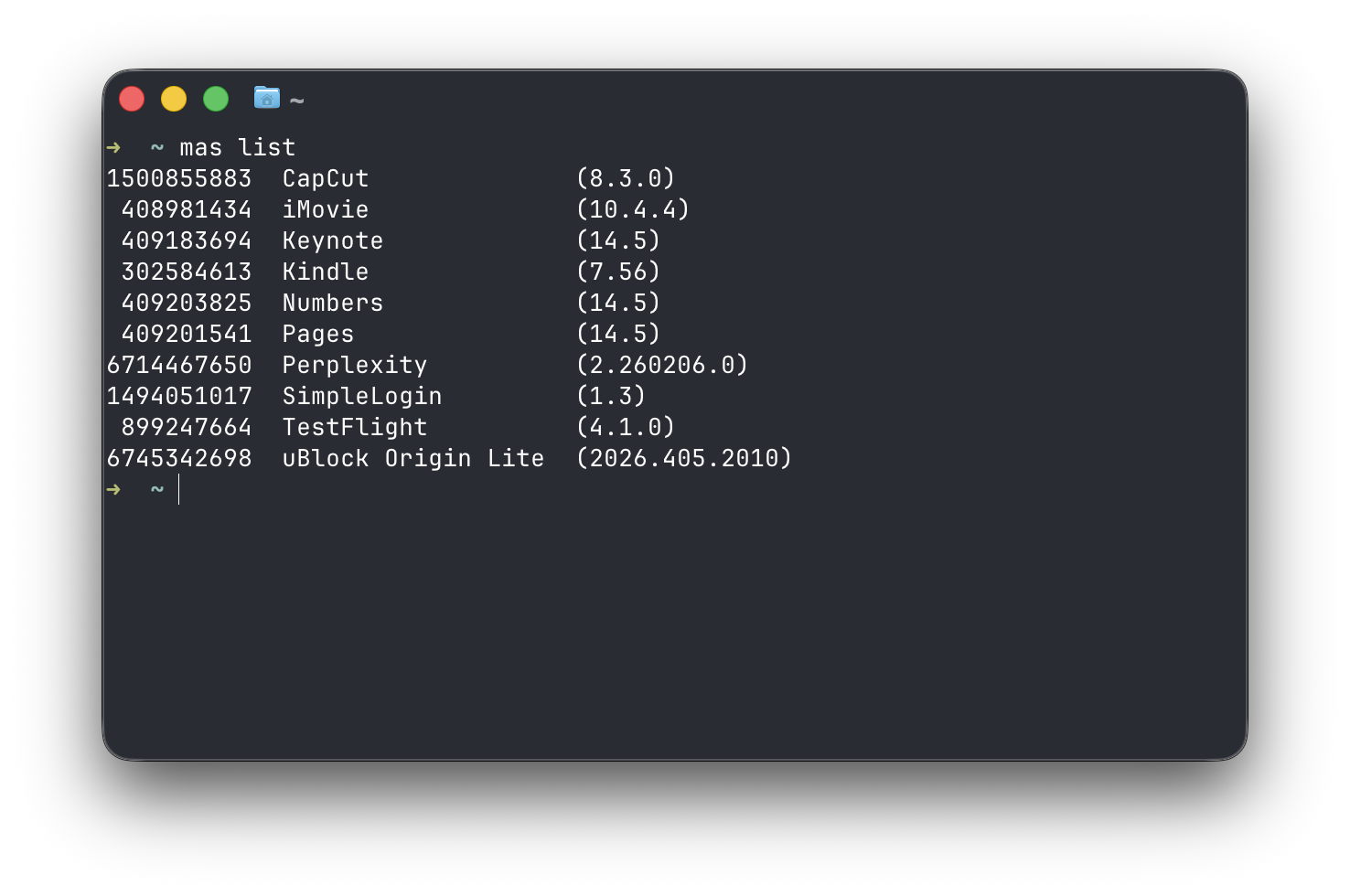
This takes a record of all your Mac App Store apps so you can see them in Homebrew using a command like $ mas list
From there, I installed a command line app called Topgrade. By running Topgrade, simply by typing $ topgrade it updates all of my Homebrew apps, my Mac App Store apps, ruby, gems, you name it. You can also customize a few different upgrade paths if you use MacPorts, and others.
Now, I just run $ topgrade weekly, daily, honestly whenever I was and I know all my apps are up-to-date even if I am not using them often.